Showing posts with label Xcelsius. Show all posts

07 March 2010

QaaWS HTTP Servlet QaaWS error Sorry, something seems to have gone wrong... here are the details:

When using Query as a Webservice, and you try to import the WSDL link into Xcelsius an error may pop up and say "Unable to load URL". Or when you paste the link into your internet browser an error occurs as following:

QaaWS HTTP Servlet
QaaWS error
Sorry, something seems to have gone wrong... here are the details:

Exception - com.crystaldecisions.sdk.exception.SDKServerException: An error occurred at the server :
Enterprise authentication could not log you on. Please make sure your logon information is correct.

cause:com.crystaldecisions.enterprise.ocaframework.idl.OCA.oca_abuse: IDL:img.seagatesoftware.com/OCA/oca_abuse:3.2
detail:An error occurred at the server :
Enterprise authentication could not log you on. Please make sure your logon information is correct.

The server supplied the following details: OCA_Abuse exception 10498 at [.\secpluginent.cpp : 610] 42040 {}
...Invalid password
I solved this problem by going to \Tomcat55\webapps\dswsbobje\WEB-INF\classes and open the dsws.properties with notepad. Then at the qaaws.principal.username and qaaws.principal.password insert the user name of Business Objects and the password.
Then restart the services.
For my case I created a separate username and password for the QaaWS.

18 February 2010

Xcelsius 2008 error #2170

If you are using Xcelsius and have encounter error #2170 when you viewing a published dashboard then you have to check the link, if you are using IP try to change it to the hostname, for example: use http://boserver:8080/.../.. instead of http://192.168.1.3:8080/../..

The problem could be also the crossdomain file which is elaborated at this website http://neverknewthat.wordpress.com/2008/03/19/when-using-xcelsius-2008/

03 December 2009

Xcelsius: Application Error Couldn't load keydecoder.dll

To solve that error you have to copy keydecoder.dll file from "Installation Directory\BusinessObjects Enterprise 12.0\win32_x86" folder and paste it to file into "Installation Directory\Xcelsius"

29 June 2009

Xcelsius: Default Selected Item From Dynamically Generated Labels

I think we all have experienced the joy of generating a list of labels dynamically for a selector component in Xcelsius. I think we also might have experienced the frustration of trying to define a specific value from that dynamic list to be the default selected one.

Consider this scenario. I have a Combo Box whose labels is a list of years retrieved by a web service. The range given for the Combo Box's labels is 6 cells and the option to ignore blank cells is checked so that if less than 6 years is returned by the web service, the Combo Box will not display the empty cells.

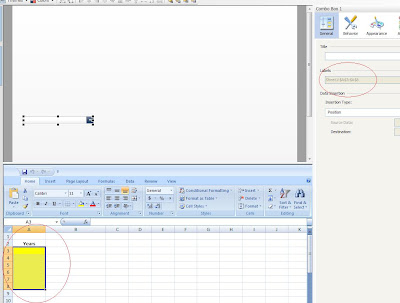
Here is what the model looks like so far. Notice the range for the Combo Box's labels on the left and on the right:


Now, let's assume that the web service will return an undetermined number of years every time it is queried. A simple example would be as time advances. This year, the web service will return 1 value, "2009". Next year, it will return two values, "2009" and "2010". And so on and so forth.
So for this year, the model will have 1 out of 6 cells occupied. The next year, it will have 2 out of the 6 cells occupied. The following figure is an example:
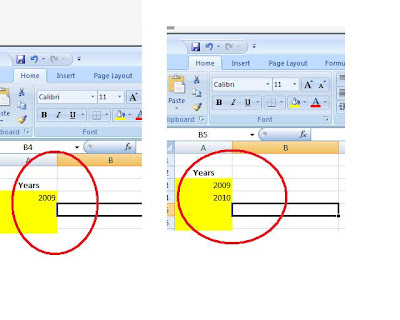

Let's say I want the default selected label to be the current year. Because as time advances, more years are returned, the current year in the list will always advance one cell down. This is shown in the figure. On the left the current year, "2009" is in the first cell. On the right, the new current year, "2010", is in the second cell. That means I can never specify a specific cell to be the default selected label.

So how to solve it? Fortuantley, Xcelsius is already intelligent enough to do this for me. I just have to trick it in doing it because it is not obvious on how do it.

1) Create a new cell in the model, with a value equal to the current year. Use Excel's functions to get the current year to maintain the dynamic nature of the dashboard.


2) Make sure to uncheck the option to ignore blank cells, and select the newly created cell as the default selected option.
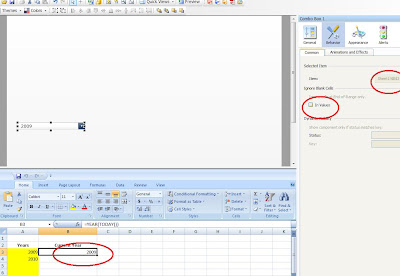


3) Check back the option to ignore blank cells AFTER you select the cell for the default selected label.

Okay I am done! Now no matter how many rows are returned by the web service, the current year will always be the default selected one.

So how does it work? Xcelsius does not care if the cell selected for the default label is within the same range for the labels. All it cares about is that the value in the cell is equal to at least 1 value in the range for the labels.

As you can see in the pictures, the current year will always be within the range for the labels. So there you have it.

Thanks for reading.

04 January 2009

A Look Inside Xcelsius' Model Layer

When introducing Xcelsius to a prominent client a couple of weeks ago, I was hit with a question from them that I realized was of some confusion to most people being introduced to Xcelsius.

Xcelsius is marketed as a data visualization tool that allows developers to create interactive and eye catching dashboards without the need to learn or understand a programming knowledge. I think that this is a little unfair in Xcelsius' own right.

When a client opens up Xcelsius for the very first time, they are immediately dumb struck by what they believe to be a limitation of its model -- a model in this case is a representation of the data that is displayed visually by Xcelsius' many visual components. Xcelsius uses Microsoft Excel as its underlying model, allowing developers to enter data in the every so friendly Microsoft Excel interface and then feeding them to the visual components they drag on drop on the canvas.

The problem, they presume, is that every time the model would need to be updated, the original source file would also need to be updated since in this case the model is integrated with the presentation layer -- the presentation layer being Xcelsius' visual components. Is this a correct assumption?

In a way, yes. Model changes will have to be changed from the source file in order for them to take effect, if only for the sole reason that there is not another simpler way.

Advanced developers using Xcelsius know better though (give yourself a pat on the back). Xcelsius offers us an option to bypass the integrated model problem by allowing us to specify an external data source from which the model will populate itself.

In most cases than not, this external data source will usually be a Web Service. Using a Web Service, I can utilize the programming language I am comfortable with, connect to any data source I want, and simply return whatever data I want to be visually presented.

I'll actually dedicate a series of posts on how this can be accomplished because the point of this post is to not explain or show how to do this but to just simply highlight that it can be done. Developers and clients alike should be aware that Xcelsius' model is not limited to static data entered during the development phase. That is not to say that Xcelsius is the most powerful tool of its kind on the market today, far from it. But it is powerful enough to get that data displayed visually in a most compelling, exciting, and simple way.

27 October 2008

Xcelsius and White Space Characters

As you begin to familiarize yourself with Xcelsius, not only will you being to appreciate it for its features but also for its irritating and time consuming bugs.

Xcelsius has a control called a Combo Box. A Combo Box simply takes a list of values as a parameter and displays it a nice drop down list that the user can select.

Assuming you have the following list of values saved in a Microsoft Excel sheet as follows:

1
2
3
4
5


The Combo Box will display the above values in a drop down list correctly, allowing the user to select any number from 1 through 5. What if you have a list of values as follows:

1 \n
2 \t
3 \0
4 \r
5 \x0B


Notice the characters in bold following the numeric characters? Those are called white space characters and word processors or editors, such as Microsoft Excel, will ignore them. When viewing a document in them, they will be invisible to the naked eye, that is why they are also sometimes referred to as hidden characters.

Usually, as a human, you won't actually type these characters yourself as they represent special formatting in an output. For example, \n represents a new line feed and \r represents a carriage return. The problem is when you are dynamically inserting this list of values in the Microsoft Excel sheet that is feeding the Combo Box.

So why is this a problem? Xcelsius, unlike Microsoft Excel, will not ignore these characters and actually consider them when generating its drop down list. The end result? The Combo Box will be empty! Xcelsius will go nuts when it detects these characters and simply refuse to render the list of values in the Combo Box.

Solution:
The solution to this problem is actually much easier than it may seem. When your inserting data dynamically, make sure that you trim it to remove any white space characters they may contain.

In PHP, I might do something like this:

<?php

// Fetch Data From A Data Source.

//
// For this example, the Data Source is simply a hard
// coded Array.

$dataSource = array( 'Element 0' , 'Element 1 ' );


// Loop Through Data.
//
// Notice we are trimming the data.

foreach( $dataSource as &$element ) {

$element = trim( $element );
}

// Generate XML.
//
// ...


?>


The idea is basically the same regardless of which programming language you choose. The lesson to be learned here? Always trim your data!

QaaWS HTTP Servlet QaaWS error Sorry, something seems to have gone wrong... here are the details:

When using Query as a Webservice, and you try to import the WSDL link into Xcelsius an error may pop up and say "Unable to load URL". Or when you paste the link into your internet browser an error occurs as following:

QaaWS HTTP Servlet
QaaWS error
Sorry, something seems to have gone wrong... here are the details:

Exception - com.crystaldecisions.sdk.exception.SDKServerException: An error occurred at the server :
Enterprise authentication could not log you on. Please make sure your logon information is correct.

cause:com.crystaldecisions.enterprise.ocaframework.idl.OCA.oca_abuse: IDL:img.seagatesoftware.com/OCA/oca_abuse:3.2
detail:An error occurred at the server :
Enterprise authentication could not log you on. Please make sure your logon information is correct.

The server supplied the following details: OCA_Abuse exception 10498 at [.\secpluginent.cpp : 610] 42040 {}
...Invalid password
I solved this problem by going to \Tomcat55\webapps\dswsbobje\WEB-INF\classes and open the dsws.properties with notepad. Then at the qaaws.principal.username and qaaws.principal.password insert the user name of Business Objects and the password.
Then restart the services.
For my case I created a separate username and password for the QaaWS.

Xcelsius 2008 error #2170

If you are using Xcelsius and have encounter error #2170 when you viewing a published dashboard then you have to check the link, if you are using IP try to change it to the hostname, for example: use http://boserver:8080/.../.. instead of http://192.168.1.3:8080/../..

The problem could be also the crossdomain file which is elaborated at this website http://neverknewthat.wordpress.com/2008/03/19/when-using-xcelsius-2008/

Xcelsius: Application Error Couldn't load keydecoder.dll

To solve that error you have to copy keydecoder.dll file from "Installation Directory\BusinessObjects Enterprise 12.0\win32_x86" folder and paste it to file into "Installation Directory\Xcelsius"

Xcelsius: Default Selected Item From Dynamically Generated Labels

I think we all have experienced the joy of generating a list of labels dynamically for a selector component in Xcelsius. I think we also might have experienced the frustration of trying to define a specific value from that dynamic list to be the default selected one.

Consider this scenario. I have a Combo Box whose labels is a list of years retrieved by a web service. The range given for the Combo Box's labels is 6 cells and the option to ignore blank cells is checked so that if less than 6 years is returned by the web service, the Combo Box will not display the empty cells.

Here is what the model looks like so far. Notice the range for the Combo Box's labels on the left and on the right:


Now, let's assume that the web service will return an undetermined number of years every time it is queried. A simple example would be as time advances. This year, the web service will return 1 value, "2009". Next year, it will return two values, "2009" and "2010". And so on and so forth.
So for this year, the model will have 1 out of 6 cells occupied. The next year, it will have 2 out of the 6 cells occupied. The following figure is an example:


Let's say I want the default selected label to be the current year. Because as time advances, more years are returned, the current year in the list will always advance one cell down. This is shown in the figure. On the left the current year, "2009" is in the first cell. On the right, the new current year, "2010", is in the second cell. That means I can never specify a specific cell to be the default selected label.

So how to solve it? Fortuantley, Xcelsius is already intelligent enough to do this for me. I just have to trick it in doing it because it is not obvious on how do it.

1) Create a new cell in the model, with a value equal to the current year. Use Excel's functions to get the current year to maintain the dynamic nature of the dashboard.


2) Make sure to uncheck the option to ignore blank cells, and select the newly created cell as the default selected option.


3) Check back the option to ignore blank cells AFTER you select the cell for the default selected label.

Okay I am done! Now no matter how many rows are returned by the web service, the current year will always be the default selected one.

So how does it work? Xcelsius does not care if the cell selected for the default label is within the same range for the labels. All it cares about is that the value in the cell is equal to at least 1 value in the range for the labels.

As you can see in the pictures, the current year will always be within the range for the labels. So there you have it.

Thanks for reading.

A Look Inside Xcelsius' Model Layer

When introducing Xcelsius to a prominent client a couple of weeks ago, I was hit with a question from them that I realized was of some confusion to most people being introduced to Xcelsius.

Xcelsius is marketed as a data visualization tool that allows developers to create interactive and eye catching dashboards without the need to learn or understand a programming knowledge. I think that this is a little unfair in Xcelsius' own right.

When a client opens up Xcelsius for the very first time, they are immediately dumb struck by what they believe to be a limitation of its model -- a model in this case is a representation of the data that is displayed visually by Xcelsius' many visual components. Xcelsius uses Microsoft Excel as its underlying model, allowing developers to enter data in the every so friendly Microsoft Excel interface and then feeding them to the visual components they drag on drop on the canvas.

The problem, they presume, is that every time the model would need to be updated, the original source file would also need to be updated since in this case the model is integrated with the presentation layer -- the presentation layer being Xcelsius' visual components. Is this a correct assumption?

In a way, yes. Model changes will have to be changed from the source file in order for them to take effect, if only for the sole reason that there is not another simpler way.

Advanced developers using Xcelsius know better though (give yourself a pat on the back). Xcelsius offers us an option to bypass the integrated model problem by allowing us to specify an external data source from which the model will populate itself.

In most cases than not, this external data source will usually be a Web Service. Using a Web Service, I can utilize the programming language I am comfortable with, connect to any data source I want, and simply return whatever data I want to be visually presented.

I'll actually dedicate a series of posts on how this can be accomplished because the point of this post is to not explain or show how to do this but to just simply highlight that it can be done. Developers and clients alike should be aware that Xcelsius' model is not limited to static data entered during the development phase. That is not to say that Xcelsius is the most powerful tool of its kind on the market today, far from it. But it is powerful enough to get that data displayed visually in a most compelling, exciting, and simple way.

Xcelsius and White Space Characters

As you begin to familiarize yourself with Xcelsius, not only will you being to appreciate it for its features but also for its irritating and time consuming bugs.

Xcelsius has a control called a Combo Box. A Combo Box simply takes a list of values as a parameter and displays it a nice drop down list that the user can select.

Assuming you have the following list of values saved in a Microsoft Excel sheet as follows:

1
2
3
4
5


The Combo Box will display the above values in a drop down list correctly, allowing the user to select any number from 1 through 5. What if you have a list of values as follows:

1 \n
2 \t
3 \0
4 \r
5 \x0B


Notice the characters in bold following the numeric characters? Those are called white space characters and word processors or editors, such as Microsoft Excel, will ignore them. When viewing a document in them, they will be invisible to the naked eye, that is why they are also sometimes referred to as hidden characters.

Usually, as a human, you won't actually type these characters yourself as they represent special formatting in an output. For example, \n represents a new line feed and \r represents a carriage return. The problem is when you are dynamically inserting this list of values in the Microsoft Excel sheet that is feeding the Combo Box.

So why is this a problem? Xcelsius, unlike Microsoft Excel, will not ignore these characters and actually consider them when generating its drop down list. The end result? The Combo Box will be empty! Xcelsius will go nuts when it detects these characters and simply refuse to render the list of values in the Combo Box.

Solution:
The solution to this problem is actually much easier than it may seem. When your inserting data dynamically, make sure that you trim it to remove any white space characters they may contain.

In PHP, I might do something like this:

<?php

// Fetch Data From A Data Source.

//
// For this example, the Data Source is simply a hard
// coded Array.

$dataSource = array( 'Element 0' , 'Element 1 ' );


// Loop Through Data.
//
// Notice we are trimming the data.

foreach( $dataSource as &$element ) {

$element = trim( $element );
}

// Generate XML.
//
// ...


?>


The idea is basically the same regardless of which programming language you choose. The lesson to be learned here? Always trim your data!